harbor配置
安装
https配置
生成CA证书
CA证书是指证书颁发机构证书。
# 生成ca证书的key
openssl genrsa -out ca.key 4096

# 生成ca证书的crt
openssl req -x509 -new -nodes -sha512 -days 3650 -subj "/C=CN/ST=HangZhou/L=HangZhou/O=Internal/OU=Personal/CN=harbor.alg.com" -key ca.key -out ca.crt
生成服务器证书
证书通常包含一个.crt文件和一个.key文件
# 生成私钥
openssl genrsa -out harbor.alg.com.key 4096


# 生成证书签名请求(CSR),域名可以换成IP
openssl req -sha512 -new -subj "/C=CN/ST=HangZhou/L=HangZhou/O=Internal/OU=Personal/CN=harbor.alg.com" -key harbor.alg.com.key -out harbor.alg.com.csr
生成一个x509 v3扩展文件
无论您使用FQDN还是IP地址连接到Harbor主机,都必须创建此文件,以便可以为您的Harbor主机生成符合主题备用名称(SAN)和x509 v3的证书扩展要求。替换DNS条目以反映您的域。
使用域名访问:
cat > v3.ext <<-EOF
authorityKeyIdentifier=keyid,issuer
basicConstraints=CA:FALSE
keyUsage = digitalSignature, nonRepudiation, keyEncipherment, dataEncipherment
extendedKeyUsage = serverAuth
subjectAltName = @alt_names

[alt_names]
DNS.1=harbor.alg.com
DNS.2=harbor.alg.com
DNS.3=harbor.alg.com
EOF
使用v3文件生成证书
openssl x509 -req -sha512 -days 3650 \
    -extfile v3.ext \
    -CA ca.crt -CAkey ca.key -CAcreateserial \
    -in harbor.alg.com.csr \
    -out harbor.alg.com.crt
将crt文件转成docker可识别的cert
openssl x509 -inform PEM -in harbor.alg.com.crt -out harbor.alg.com.cert客户端配置docker可识别的自签名证书
# 哪台机器需要使用这个服务就需要配置。
# 这个路径就是放置自签名证书的地方,如果有端口的话文件夹改成harbor.alg.com:<port>
sudo mkdir -p /etc/docker/certs.d/harbor.alg.com
sudo cp ca.crt /etc/docker/certs.d/harbor.alg.com

# 实测不需要重启docker服务就行
# sudo systemctl restart docker
harbor.yml修改
# 修改https部分
https:
  # https port for harbor, default is 443
  port: 30001
  # The path of cert and key files for nginx
  certificate: /path_to/harbor.alg.com.crt
  private_key: /path_to/harbor.alg.com.key


# 随后执行重新配置
./prepare

# 启动
docker-compose up -d
nginx反向代理配置
server {
    listen       10000 ssl;
    listen  [::]:10000 ssl;
    server_name yourhost.com;

    ssl_certificate /etc/nginx/ssl/yourhost.com.crt;
    ssl_certificate_key /etc/nginx/ssl/yourhost.com.key;
    ssl_protocols TLSv1.2 TLSv1.3;
    ssl_ciphers '!aNULL:kECDH+AESGCM:ECDH+AESGCM:RSA+AESGCM:kECDH+AES:ECDH+AES:RSA+AES:';
    ssl_prefer_server_ciphers on;
    ssl_session_cache shared:SSL:10m;

    #access_log  /var/log/nginx/host.access.log  main;
          client_max_body_size 0;

    # required to avoid HTTP 411: see Issue #1486 (https://github.com/docker/docker/issues/1486)
    chunked_transfer_encoding on;

    # Add extra headers
    add_header Strict-Transport-Security "max-age=31536000; includeSubdomains; preload";
    add_header X-Frame-Options DENY;
    add_header Content-Security-Policy "frame-ancestors 'none'";

    location / {
      proxy_pass http://localhost:31000/; # harbor's inner services

      proxy_set_header Host $http_host;
      proxy_set_header X-Real-IP $remote_addr;
      proxy_set_header X-Forwarded-For $proxy_add_x_forwarded_for;
      proxy_set_header X-Forwarded-Proto $scheme;

      proxy_cookie_path / "/; HttpOnly; Secure";
      proxy_buffering off;
      proxy_request_buffering off;
    }

    # redirect server error pages to the static page /50x.html
    #
    error_page   500 502 503 504  /50x.html;
    location = /50x.html {
        root   /usr/share/nginx/html;
    }
}
# Configuration file of Harbor
# The IP address or hostname to access admin UI and registry service.
# DO NOT use localhost or 127.0.0.1, because Harbor needs to be accessed by external clients.
hostname: yourhost.com
# http related config
http:
# port for http, default is 80. If https enabled, this port will redirect to https port
port: 31000
# https related config
# https:
# https port for harbor, default is 443
# port: 31001
# The path of cert and key files for nginx
# certificate: /your/certificate/path
# certificate: /volume2/docker/license/tsl/yourhost.com.crt
# private_key: /volume2/docker/license/tsl/yourhost.com.key
# private_key: /your/private/key/path
# enable strong ssl ciphers (default: false)
# strong_ssl_ciphers: false
# # Harbor will set ipv4 enabled only by default if this block is not configured
# # Otherwise, please uncomment this block to configure your own ip_family stacks
# ip_family:
# # ipv6Enabled set to true if ipv6 is enabled in docker network, currently it affected the nginx related component
# ipv6:
# enabled: false
# # ipv4Enabled set to true by default, currently it affected the nginx related component
# ipv4:
# enabled: true
# # Uncomment following will enable tls communication between all harbor components
# internal_tls:
# # set enabled to true means internal tls is enabled
# enabled: true
# # put your cert and key files on dir
# dir: /etc/harbor/tls/internal
# Uncomment external_url if you want to enable external proxy
# And when it enabled the hostname will no longer used
external_url: https://yourhost.com
# The initial password of Harbor admin
# It only works in first time to install harbor
# Remember Change the admin password from UI after launching Harbor.
harbor_admin_password: XXXXXXXXXXXXXXXXXXXXXXXXX
# Harbor DB configuration
database:
# The password for the user('postgres' by default) of Harbor DB. Change this before any production use.
password: root123
# The maximum number of connections in the idle connection pool. If it <=0, no idle connections are retained.
max_idle_conns: 100
# The maximum number of open connections to the database. If it <= 0, then there is no limit on the number of open connections.
# Note: the default number of connections is 1024 for postgres of harbor.
max_open_conns: 900
# The maximum amount of time a connection may be reused. Expired connections may be closed lazily before reuse. If it <= 0, connections are not closed due to a connection's age.
# The value is a duration string. A duration string is a possibly signed sequence of decimal numbers, each with optional fraction and a unit suffix, such as "300ms", "-1.5h" or "2h45m". Valid time units are "ns", "us" (or "µs"), "ms", "s", "m", "h".
conn_max_lifetime: 5m
# The maximum amount of time a connection may be idle. Expired connections may be closed lazily before reuse. If it <= 0, connections are not closed due to a connection's idle time.
# The value is a duration string. A duration string is a possibly signed sequence of decimal numbers, each with optional fraction and a unit suffix, such as "300ms", "-1.5h" or "2h45m". Valid time units are "ns", "us" (or "µs"), "ms", "s", "m", "h".
conn_max_idle_time: 0
# The default data volume
data_volume: /volume2/docker/harbor/data
# Harbor Storage settings by default is using /data dir on local filesystem
# Uncomment storage_service setting If you want to using external storage
# storage_service:
# # ca_bundle is the path to the custom root ca certificate, which will be injected into the truststore
# # of registry's containers. This is usually needed when the user hosts a internal storage with self signed certificate.
# ca_bundle:
# # storage backend, default is filesystem, options include filesystem, azure, gcs, s3, swift and oss
# # for more info about this configuration please refer https://distribution.github.io/distribution/about/configuration/
# # and https://distribution.github.io/distribution/storage-drivers/
# filesystem:
# maxthreads: 100
# # set disable to true when you want to disable registry redirect
# redirect:
# disable: false
# Trivy configuration
#
# Trivy DB contains vulnerability information from NVD, Red Hat, and many other upstream vulnerability databases.
# It is downloaded by Trivy from the GitHub release page https://github.com/aquasecurity/trivy-db/releases and cached
# in the local file system. In addition, the database contains the update timestamp so Trivy can detect whether it
# should download a newer version from the Internet or use the cached one. Currently, the database is updated every
# 12 hours and published as a new release to GitHub.
trivy:
# ignoreUnfixed The flag to display only fixed vulnerabilities
ignore_unfixed: false
# skipUpdate The flag to enable or disable Trivy DB downloads from GitHub
#
# You might want to enable this flag in test or CI/CD environments to avoid GitHub rate limiting issues.
# If the flag is enabled you have to download the `trivy-offline.tar.gz` archive manually, extract `trivy.db` and
# `metadata.json` files and mount them in the `/home/scanner/.cache/trivy/db` path.
skip_update: false
#
# skipJavaDBUpdate If the flag is enabled you have to manually download the `trivy-java.db` file and mount it in the
# `/home/scanner/.cache/trivy/java-db/trivy-java.db` path
skip_java_db_update: false
#
# The offline_scan option prevents Trivy from sending API requests to identify dependencies.
# Scanning JAR files and pom.xml may require Internet access for better detection, but this option tries to avoid it.
# For example, the offline mode will not try to resolve transitive dependencies in pom.xml when the dependency doesn't
# exist in the local repositories. It means a number of detected vulnerabilities might be fewer in offline mode.
# It would work if all the dependencies are in local.
# This option doesn't affect DB download. You need to specify "skip-update" as well as "offline-scan" in an air-gapped environment.
offline_scan: false
#
# Comma-separated list of what security issues to detect. Possible values are `vuln`, `config` and `secret`. Defaults to `vuln`.
security_check: vuln
#
# insecure The flag to skip verifying registry certificate
insecure: false
#
# timeout The duration to wait for scan completion.
# There is upper bound of 30 minutes defined in scan job. So if this `timeout` is larger than 30m0s, it will also timeout at 30m0s.
timeout: 5m0s
#
# github_token The GitHub access token to download Trivy DB
#
# Anonymous downloads from GitHub are subject to the limit of 60 requests per hour. Normally such rate limit is enough
# for production operations. If, for any reason, it's not enough, you could increase the rate limit to 5000
# requests per hour by specifying the GitHub access token. For more details on GitHub rate limiting please consult
# https://docs.github.com/rest/overview/resources-in-the-rest-api#rate-limiting
#
# You can create a GitHub token by following the instructions in
# https://help.github.com/en/github/authenticating-to-github/creating-a-personal-access-token-for-the-command-line
#
# github_token: xxx
jobservice:
# Maximum number of job workers in job service
max_job_workers: 10
# The jobLoggers backend name, only support "STD_OUTPUT", "FILE" and/or "DB"
job_loggers:
- STD_OUTPUT
- FILE
# - DB
# The jobLogger sweeper duration (ignored if `jobLogger` is `stdout`)
logger_sweeper_duration: 1 #days
notification:
# Maximum retry count for webhook job
webhook_job_max_retry: 3
# HTTP client timeout for webhook job
webhook_job_http_client_timeout: 3 #seconds
# Log configurations
log:
# options are debug, info, warning, error, fatal
level: info
# configs for logs in local storage
local:
# Log files are rotated log_rotate_count times before being removed. If count is 0, old versions are removed rather than rotated.
rotate_count: 50
# Log files are rotated only if they grow bigger than log_rotate_size bytes. If size is followed by k, the size is assumed to be in kilobytes.
# If the M is used, the size is in megabytes, and if G is used, the size is in gigabytes. So size 100, size 100k, size 100M and size 100G
# are all valid.
rotate_size: 200M
# The directory on your host that store log
location: /volume2/docker/harbor/logs
# Uncomment following lines to enable external syslog endpoint.
# external_endpoint:
# # protocol used to transmit log to external endpoint, options is tcp or udp
# protocol: tcp
# # The host of external endpoint
# host: localhost
# # Port of external endpoint
# port: 5140
#This attribute is for migrator to detect the version of the .cfg file, DO NOT MODIFY!
_version: 2.12.0
# Uncomment external_database if using external database.
# external_database:
# harbor:
# host: harbor_db_host
# port: harbor_db_port
# db_name: harbor_db_name
# username: harbor_db_username
# password: harbor_db_password
# ssl_mode: disable
# max_idle_conns: 2
# max_open_conns: 0
# Uncomment redis if need to customize redis db
# redis:
# # db_index 0 is for core, it's unchangeable
# # registry_db_index: 1
# # jobservice_db_index: 2
# # trivy_db_index: 5
# # it's optional, the db for harbor business misc, by default is 0, uncomment it if you want to change it.
# # harbor_db_index: 6
# # it's optional, the db for harbor cache layer, by default is 0, uncomment it if you want to change it.
# # cache_layer_db_index: 7
# Uncomment external_redis if using external Redis server
# external_redis:
# # support redis, redis+sentinel
# # host for redis: <host_redis>:<port_redis>
# # host for redis+sentinel:
# # <host_sentinel1>:<port_sentinel1>,<host_sentinel2>:<port_sentinel2>,<host_sentinel3>:<port_sentinel3>
# host: redis:6379
# password:
# # Redis AUTH command was extended in Redis 6, it is possible to use it in the two-arguments AUTH <username> <password> form.
# # there's a known issue when using external redis username ref:https://github.com/goharbor/harbor/issues/18892
# # if you care about the image pull/push performance, please refer to this https://github.com/goharbor/harbor/wiki/Harbor-FAQs#external-redis-username-password-usage
# # username:
# # sentinel_master_set must be set to support redis+sentinel
# #sentinel_master_set:
# # db_index 0 is for core, it's unchangeable
# registry_db_index: 1
# jobservice_db_index: 2
# trivy_db_index: 5
# idle_timeout_seconds: 30
# # it's optional, the db for harbor business misc, by default is 0, uncomment it if you want to change it.
# # harbor_db_index: 6
# # it's optional, the db for harbor cache layer, by default is 0, uncomment it if you want to change it.
# # cache_layer_db_index: 7
# Uncomment uaa for trusting the certificate of uaa instance that is hosted via self-signed cert.
# uaa:
# ca_file: /path/to/ca
# Global proxy
# Config http proxy for components, e.g. http://my.proxy.com:3128
# Components doesn't need to connect to each others via http proxy.
# Remove component from `components` array if want disable proxy
# for it. If you want use proxy for replication, MUST enable proxy
# for core and jobservice, and set `http_proxy` and `https_proxy`.
# Add domain to the `no_proxy` field, when you want disable proxy
# for some special registry.
proxy:
http_proxy:
https_proxy:
no_proxy:
components:
- core
- jobservice
- trivy
# metric:
# enabled: false
# port: 9090
# path: /metrics
# Trace related config
# only can enable one trace provider(jaeger or otel) at the same time,
# and when using jaeger as provider, can only enable it with agent mode or collector mode.
# if using jaeger collector mode, uncomment endpoint and uncomment username, password if needed
# if using jaeger agetn mode uncomment agent_host and agent_port
# trace:
# enabled: true
# # set sample_rate to 1 if you wanna sampling 100% of trace data; set 0.5 if you wanna sampling 50% of trace data, and so forth
# sample_rate: 1
# # # namespace used to differentiate different harbor services
# # namespace:
# # # attributes is a key value dict contains user defined attributes used to initialize trace provider
# # attributes:
# # application: harbor
# # # jaeger should be 1.26 or newer.
# # jaeger:
# # endpoint: http://hostname:14268/api/traces
# # username:
# # password:
# # agent_host: hostname
# # # export trace data by jaeger.thrift in compact mode
# # agent_port: 6831
# # otel:
# # endpoint: hostname:4318
# # url_path: /v1/traces
# # compression: false
# # insecure: true
# # # timeout is in seconds
# # timeout: 10
# Enable purge _upload directories
upload_purging:
enabled: true
# remove files in _upload directories which exist for a period of time, default is one week.
age: 168h
# the interval of the purge operations
interval: 24h
dryrun: false
# Cache layer configurations
# If this feature enabled, harbor will cache the resource
# `project/project_metadata/repository/artifact/manifest` in the redis
# which can especially help to improve the performance of high concurrent
# manifest pulling.
# NOTICE
# If you are deploying Harbor in HA mode, make sure that all the harbor
# instances have the same behaviour, all with caching enabled or disabled,
# otherwise it can lead to potential data inconsistency.
cache:
# not enabled by default
enabled: false
# keep cache for one day by default
expire_hours: 24
# Harbor core configurations
# Uncomment to enable the following harbor core related configuration items.
# core:
# # The provider for updating project quota(usage), there are 2 options, redis or db,
# # by default is implemented by db but you can switch the updation via redis which
# # can improve the performance of high concurrent pushing to the same project,
# # and reduce the database connections spike and occupies.
# # By redis will bring up some delay for quota usage updation for display, so only
# # suggest switch provider to redis if you were ran into the db connections spike around
# # the scenario of high concurrent pushing to same project, no improvement for other scenes.
# quota_update_provider: redis # Or db使用
# 注意你是否配了docker的代理,有代理会有问题。
# docker首先登录
docker login harbor.alg.com
问题
v1.10.19版本 反向代理无法推送
- harbor配置时,关闭https
- 配置nginx的harbor反向代理,且在nginx处进行ssl terminate
- 登录,拉取镜像都OK,推送镜像反复retry
- 测试使用insecure(http)进行推送是OK的,怀疑是nginx的反向代理的问题,但是按照原始配置尝试了,一直不work。
- 并且修改了admin_password也无法生效,不知道为什么。
- 放弃,直接升级版本进行尝试,见下方尝试:
v2.12.1 data文件夹prepare问题
v2.12.1成功部署之后,反向代理的方式可以成功运行(登录、拉取、推送等)。
但是在部署过程中,遇到奇怪的问题:
- 刚开始的时候
admin账户一直登录不上去,尝试进到db容器中查看密码,但是是sha256,遂放弃。 - 随后修改了
harbor_admin_password,重新sudo ./prepare,甚至重新./install.sh都不生效,百思不得其解,反正就是登录不了。 - 然后我又尝试清空所有的数据,
docker-compose down -v,而且删除了数据文件夹common和data,然后重新安装,这个时候又遇到了data/database中始终没有prepare出来数据(可以看./prepare脚本,实际就是映射目录进去,在docker里进行拷贝一类的操作),这个时候只能是权限问题了,我又多次手动执行prepare和install.sh,然后不知道怎么的数据就有了(我怀疑跟群晖特殊的权限管理有关)。 - 然后就全都正常了。
配置hostname之后,通过IP访问密码错误
需要通过配置的hostname访问,账号密码才能正确通过,并不是账号密码错误。
密码重置
# 进入db容器
docker exec -it harbor-db /bin/bash
# 进入registry数据库
psql -U postgres
\l
\c registry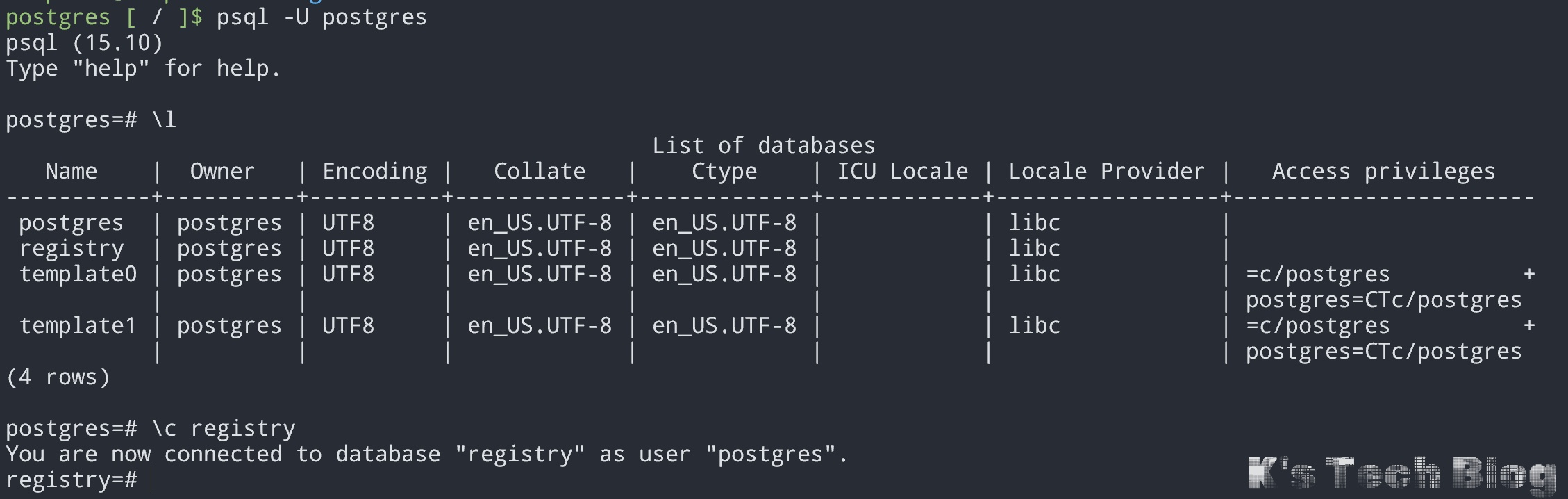
# 查看user数据表
select * from harbor_user;
# 删除admin的密码(harbor重启后会自动更新默认的密码Harbor12345)
update salt='',password='' where user_id = 1;